Using the Soon AI Scheduling Assistant
Last updated February 24, 2026
The Soon AI Scheduling Assistant helps you assign activities within shifts, handle bulk updates, and answer schedule stats questions for the current day. Think of it as a practical assistant for day-to-day scheduling tasks, not a mathematical optimizer for complex constraint solving.
For the best results, write clear and specific prompts. This guide includes tips, examples, and best practices to help you get reliable results quickly.
Before you start
- Plan availability: The Soon AI Scheduling Assistant is available on the Business and Enterprise plans.
- Access rights: Only admins with Can Edit permissions in the Workload intraday management view can use the assistant.
What the assistant is best for
Use the assistant when you want to:
- Assign activities within shifts
- Apply bulk scheduling updates across a team
- Add breaks with timing rules and overlap limits
- Ask quick stats questions about the day, such as total hours, coverage, workload per person, or activity totals
If you need full optimization across many constraints, use the Intraday Solver instead.
Why specificity matters
The assistant follows your instructions closely. A vague prompt like “Schedule a break” leaves too much open to interpretation, such as:
- Who is the break for
- How long should the break be
- When should the break happen
For better results, include:
- Who the request is for (a user or group)
- What activity do you want (for example, Call, Break, Training)
- When it should happen (a fixed time or a time window)
You can write prompts in any language, and the assistant will respond in the same language.
Use @ and # for better accuracy
Use @ for users or groups and # for activities.
Examples
1. @Alex Smith 2. @Team A 3. #Call 4. #Break This makes prompts more reliable because Soon can match the exact user, group, or activity, even when names are similar or there are small typos.
Example prompts
Copy these and adjust names, groups, activities, and times.
Scheduling prompts
- Breaks for shifts in a specific rangeSchedule a 30-minute break for each user whose shift runs from 08:00 to 17:00. Distribute breaks between 11:30, 12:00, and 12:30.
- Breaks for all usersSchedule a 30-minute break for all users. Distribute breaks between 11:30, 12:00, and 12:30.
- Breaks for a specific groupSchedule a 30-minute break for @Team A. Distribute breaks between 12:00 and 13:00.
- Breaks with an overlap limitSchedule a 30-minute break for all users. Distribute breaks between 12:00 and 13:00. Make sure no more than 50% overlap at the same time.
- Two breaks with timing rulesSchedule two breaks for all users. One break should be 30 minutes, and the other 15 minutes. Distribute the 30-minute break between 12:00 and 13:00 with a maximum overlap of 50%. The 15-minute break should start between 1.5 and 2 hours before each shift ends, with no more than 3 people overlapping.
- Breaks in fixed start incrementsSchedule a 30-minute break for @Team A. Distribute breaks between 12:00 and 14:00 in 15-minute start time increments.
- Fixed time break for one userSchedule a 30-minute break for @Alex Smith starting at 12:00.
- Break based on shift start timeSchedule a 30-minute break for all users, starting 4 hours after each shift starts.
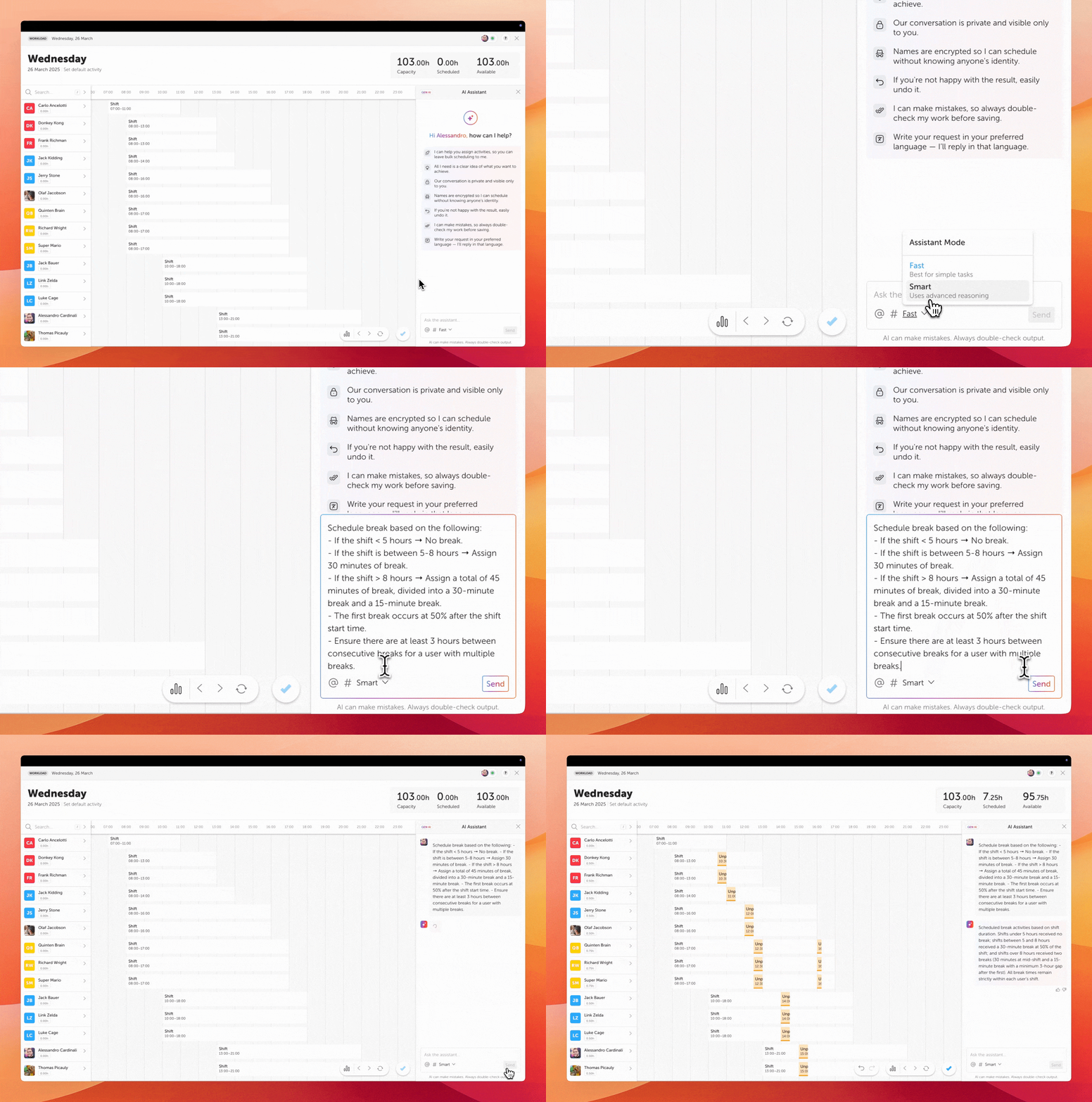
- Break rules based on shift lengthSchedule breaks using these rules:
- If a shift is shorter than 5 hours, assign no break
- If a shift is between 5 and 8 hours, assign 30 minutes of break
- If a shift is longer than 8 hours, assign 45 minutes total break, split into one 30-minute break and one 15-minute break
- The first break should happen halfway through the shift
- Make sure there are at least 3 hours between breaks for users with multiple breaks
Stats prompts for the day
- Total scheduled hoursHow many total scheduled hours do we have today?
- Workload per personShow the workload per person for today.
- Workload per person in a time windowShow the workload per person for today between 09:00 and 13:00.
- Coverage by roleWhat is coverage by role between 12:00 and 15:00 today?
- Activity totalsHow many hours of #Call are scheduled today?
- Break totalsWhat is the total break time scheduled today?
- Group totalsShow total scheduled hours for @Team A today.
- Activity breakdownGive me a breakdown of the scheduled time for each activity today.
Pro tips for prompting
- Use `@user` or `@group` and `#activity` whenever possible
- Use exact times when needed, or a clear time window if timing can be flexible
- For more complex requests, write your prompt as short bullet points
- Be explicit about overlap limits, timing rules, and who is included
- Save your best prompts and reuse them with small edits
- Always review the result before continuing
- You can undo changes with Ctrl + Z or Cmd + Z if needed
Security, privacy, and best practices
Security and privacy
The Soon AI Scheduling Assistant is powered by OpenAI.
Soon is designed to protect your data and only process the information needed to complete your request. When you use tags such as @Alex Smith, @Team A or #Call, Soon converts them into internal identifiers before processing to improve accuracy and reduce exposure of personal details.
The assistant only performs actions based on your explicit prompt, so you stay in control of the final schedule.
Learn more about OpenAI privacy and security
- OpenAI Security and Privacy
- OpenAI Business Data Privacy, Security, and Compliance
- OpenAI Enterprise Privacy
- OpenAI API Data Controls
- OpenAI Trust Portal
- OpenAI Usage Policies
Accuracy
AI-generated results can vary. Always review the proposed changes before applying them, especially for important scheduling decisions.
Your responsibilities
Use the assistant responsibly and verify the output before relying on it. Make sure your prompt is clear and complete.
Important note
The AI Scheduling Assistant helps with intraday activity scheduling and day-level stats questions. It does not replace your review process or the Intraday Solver for advanced optimization workflows.