API Keys
Last updated March 24, 2026
1. Overview
API keys allow external applications to authenticate with the Soon API. You can create multiple keys with different permissions and expiration settings.
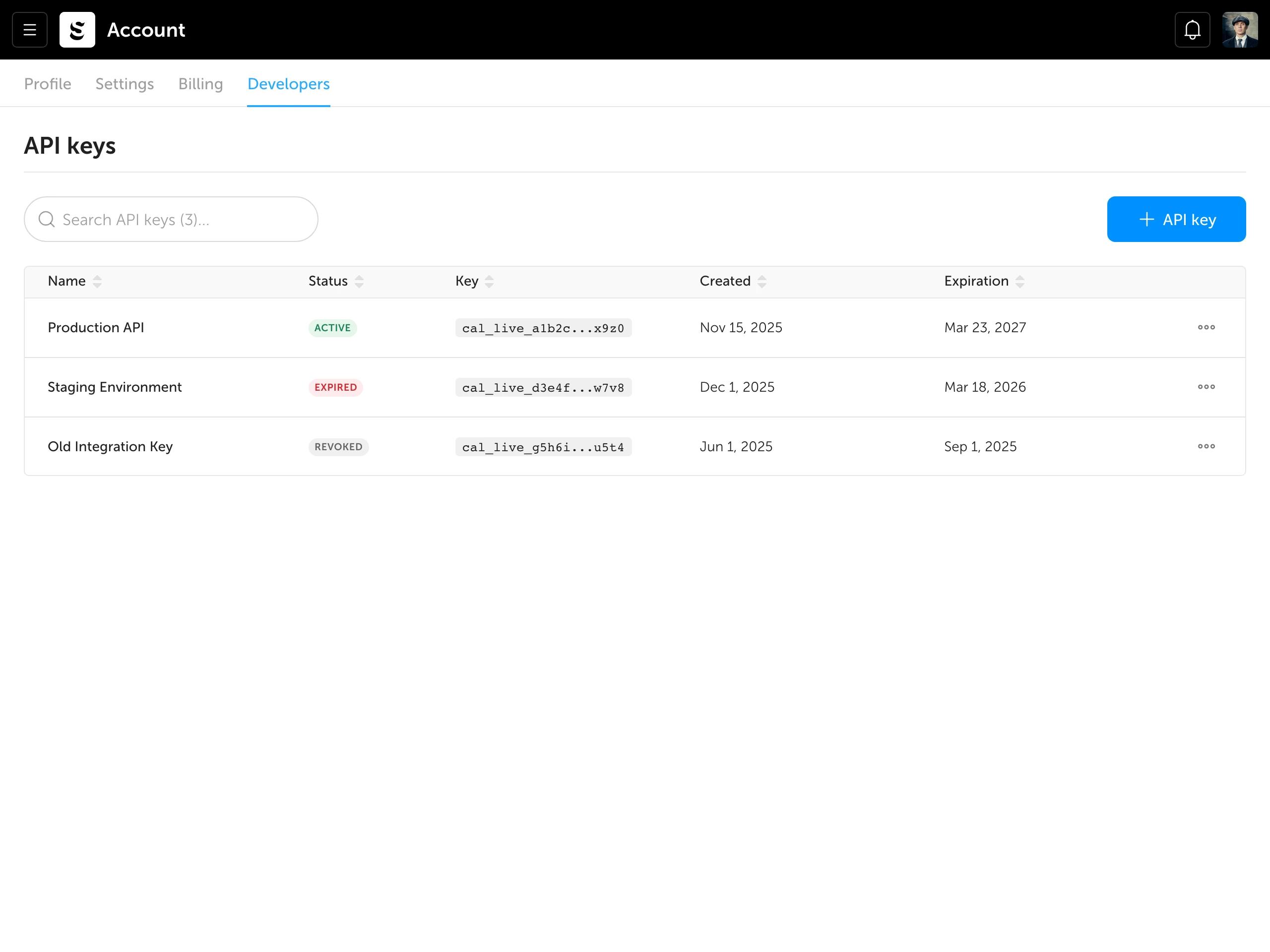
API keys are managed from Account > Developers.
Note: Only team owners can create, edit, or revoke API keys. Admins have read-only access to view keys and their details.
2. Creating an API key
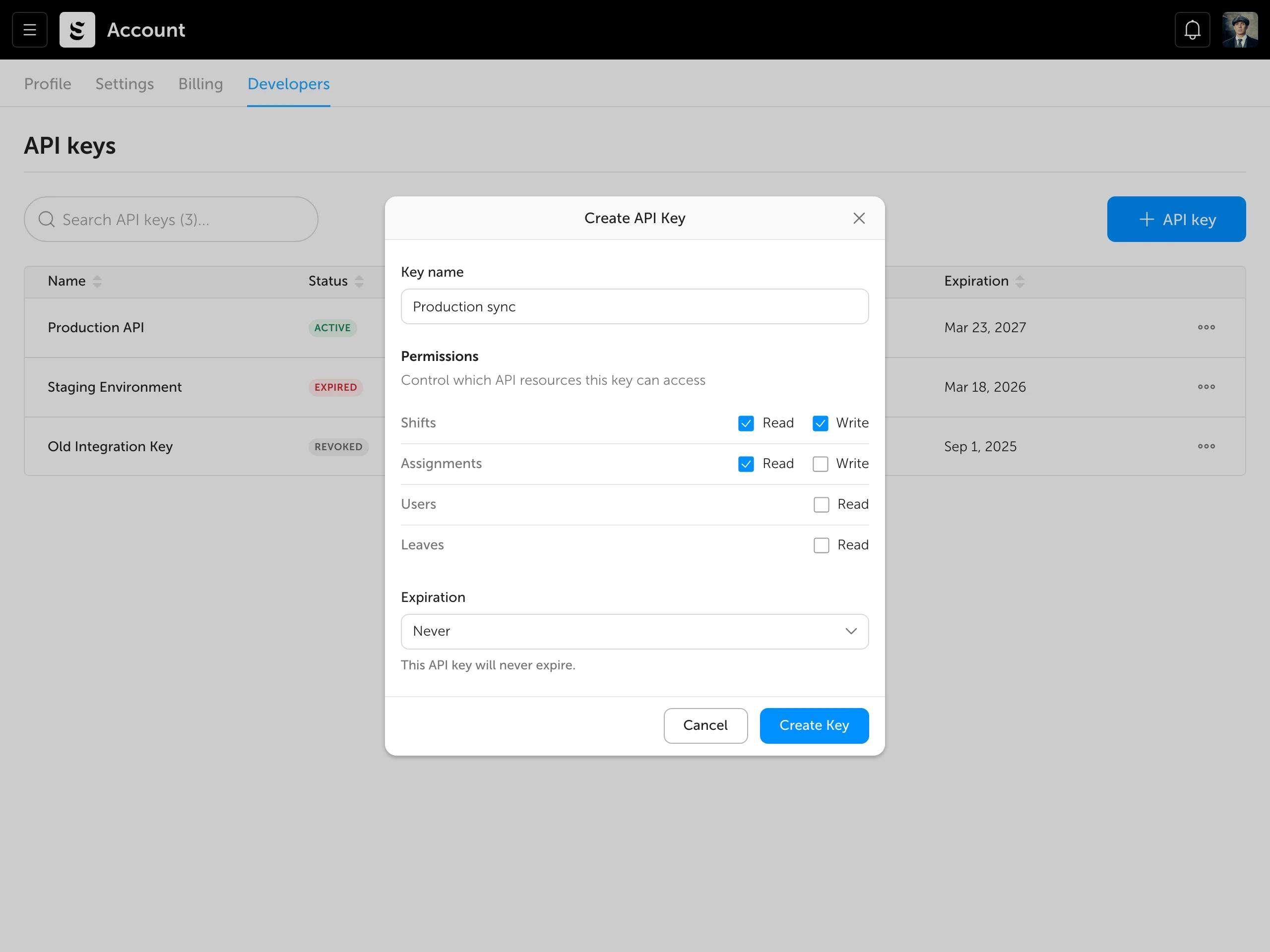
Click the "+ API key" button to open the creation modal.
Key name
Give the key a descriptive name so you can identify it later (e.g. "Production sync" or "Staging integration"). Max 60 characters.
Permissions
Select which resources the key can access and at what level:
| Resource | Available permissions |
|----------|---------------------|
| Shifts | Read, Write |
| Assignments | Read, Write |
| Users | Read |
| Leaves | Read |
You must select at least one permission. Permissions and expiration cannot be changed after the key is created — if you need different settings, create a new key.
Expiration
Choose when the key should expire:
- Never — the key stays active until manually revoked
- 7 days, 30 days, 3 months, 1 year — preset durations from creation date
- Custom — pick a specific date
Click "Create Key" to generate the key.
3. Saving your API key
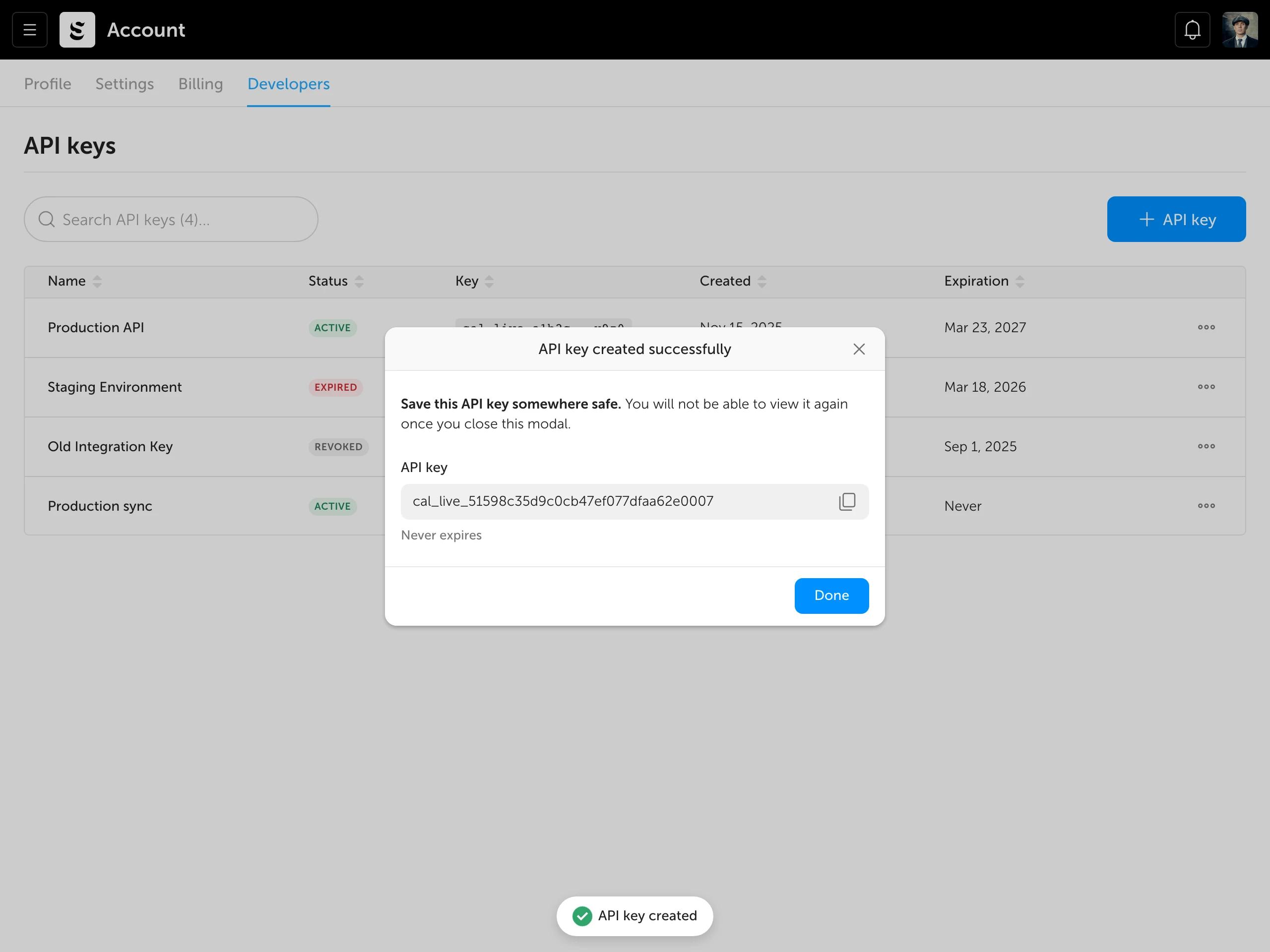
After creation, the full API key is displayed once. Copy it immediately.
Note: You will not be able to view the full key again after closing this modal. If you lose it, you'll need to revoke the key and create a new one.
4. Managing existing keys
All your API keys are listed in a table showing:
- Name — the key's label
- Status — Active (green), Expired (red), or Revoked (gray)
- Key — a masked version of the key (only the last 4 characters are visible)
- Created — when the key was created
- Expiration — when the key expires, or "Never"
You can search keys by name and sort by any column.
Editing a key
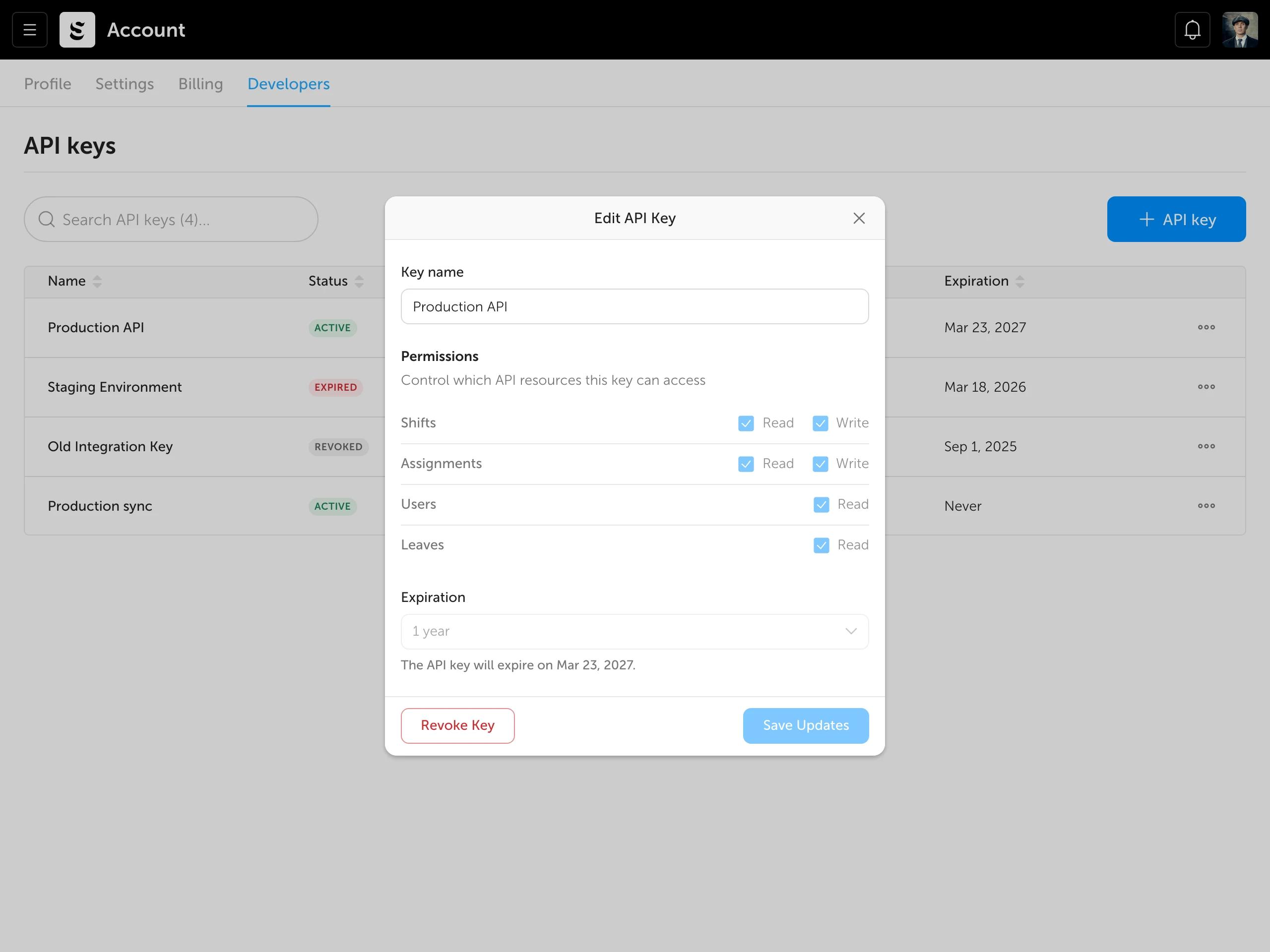
Click a key row or select "Edit" from the actions menu (three dots) to open the edit modal. You can update the key name — permissions and expiration are shown for reference but cannot be modified.
Revoking a key
To revoke an active key, select "Revoke" from the actions menu or click "Revoke Key" in the edit modal. A confirmation dialog will appear.
Note: Revoking a key is permanent. Any application using this key will immediately lose access to the API. Revoked keys remain visible in the table for audit purposes.
Viewing revoked or expired keys
Clicking a revoked or expired key opens API Key Details — a read-only view showing the key's name, permissions, and expiration. These keys can only be deleted.
Deleting a key
Revoked and expired keys can be removed from the list by selecting "Delete" from the actions menu or clicking "Delete Key" in the details view.
5. Best practices
- Use descriptive names — name keys by their purpose or environment (e.g. "HR sync - production")
- Set an expiration — avoid "Never" for production keys; rotating keys regularly is safer
- Use minimal permissions — only grant the access each integration actually needs
- Revoke unused keys — if an integration is decommissioned, revoke its key immediately
6. API documentation
For full details on available endpoints, authentication, and request formats, see the [Soon API documentation](https://docs.soon.works/api).